
Overview
Source: ./src/documentation/getting-started/ide-support.mdx
IDE support
The OTTO components library provides a feature that you can use to enable component-specific autocompletion and intellisense in your favorite IDE. This improves the developer experience by generating suggestions for component names, attribute names, enum values, and other code elements as you type.
Info This feature is framework-agnostic. You can use it with any JavaScript framework, such as React, Vue, Svelte, or Angular and with any template engine, such as FreeMarker and Thymeleaf.
Autocompletion
Autocompletion is a valuable tool that can boost productivity, reduce errors, and improve code quality.
Here are some benefits of using autocompletion:
- Discoverability: Autocompletion helps you explore the available components by suggesting relevant code elements. This makes it easier to discover new features and functionality without having to refer to documentation or search for examples.
- Time-saving: Autocompletion suggests component names, attribute names, enum values, and other elements as you type, saving you time by reducing the need to type everything manually.
- Error prevention: Autocompletion helps prevent typos and syntax errors by suggesting valid code elements based on the context. It can also provide information about the expected parameters and return types of functions, reducing the chances of making mistakes.
- Consistency: Autocompletion can enforce coding standards and conventions by suggesting standardized code elements. This helps maintain consistency across the codebase and improves code readability.
Use the Otto Components Library with your IDE
Using the OTTO components library with your IDE is a straightforward process. Regardless of which IDE you are using, it is required that you have set up your local development environment and have the OTTO components library installed in your project. If you haven't done so already, follow the steps in the linked guide. Once you have the library installed, you can enable autocompletion in your IDE by following the instructions below.
VSCode
To enable OTTO components autocompletion for VSCode, follow these steps:
- Create a
.vscodedirectory on the top level of your project. - Add a
settings.jsonfile to the.vscodedirectory. - Add the following code to the
settings.json:
{
  "html.customData": [
    "./node_modules/@otto-ec/otto-components/html.html-data.json"
  ]
}
JetBrains (IntelliJ, WebStorm, ...)
OTTO components autocompletion for JetBrains IDEs is automatically enabled when you have the OTTO components library installed in your project.
Autocompletion in action
Once you have set up your local environment, you can start using OTTO component autocompletion in your IDE. Here are some examples of how autocompletion can help you write code more efficiently and accurately:
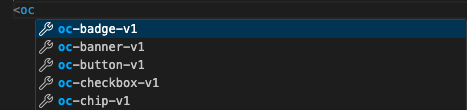
Component names
Autocompletion suggests OTTO component names as you type, making it easier to discover and insert the correct component tags in your projects.
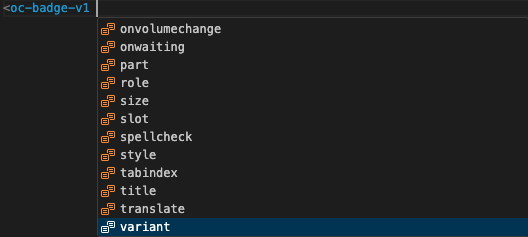
Attribute names
Autocompletion includes OTTO component attributes in the suggestion dialog, making it easier to set attributes for components.
Enum values
Autocompletion suggests enum values for attributes that expect specific values, making it easier to select the correct value.

JSDoc support
Autocompletion shows the JSDoc information for each OTTO component and attribute when you hover over the code element, making it easier to understand how to use and configure the component correctly.
